Percentage change formula in Excel and Google Sheets
Percentage change in a spreadsheet: =(B3-B2)/B2 or =B3/B2-1, formatted as a percent. Fill it down for month-over-month change, compare to a fixed base with $B$2, and handle zeros and negatives.
With the old value in B2 and the new one in B3, use =(B3-B2)/B2 and format the cell as a percentage. =B3/B2-1 gives the same result. For change since the first month, anchor the base: =(B3-$B$2)/$B$2. Wrap in IFERROR to handle a zero starting value.
On this page
A column of percentage changes is one of the most common spreadsheet tasks. The formula is the standard percentage change: new minus old, divided by old.
The formula
With the earlier value in B2 and the later value in B3:
=(B3-B2)/B2
Where format the cell as a percentage
An equivalent, slightly shorter version is =B3/B2-1.
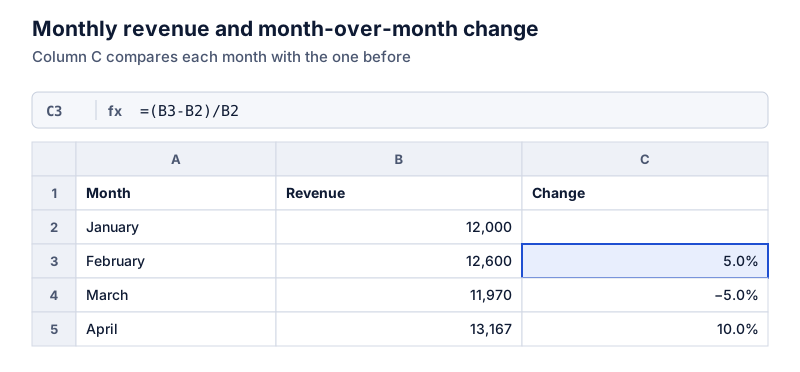
February to March, for example:
Try it: 12,600 → 11,970 (a decrease)
Open in calculatorThe calculator reports the size of the change and labels it a decrease. In the sheet, the same result shows as −5.0%.
Filling down
Enter the formula in C3, then drag or double-click the fill handle. Each row compares itself with the row above because the references are relative: C4 becomes =(B4-B3)/B3, and so on. Leave C2 empty, since January has nothing to compare with.
Change from a fixed base
To compare every month with January, lock the base cell with dollar signs:
=(B3-$B$2)/$B$2
Where $B$2 stays fixed when the formula is filled down
April vs January:
Try it: 12,000 → 13,167
Open in calculatorThat’s the overall change, 9.7%. It isn’t the sum or average of the monthly changes (5% − 5% + 10% = 10%; average 3.3%). Changes compound, as explained in successive percentage changes.
Year over year
With 12 months of data in a column, compare each month with the same month last year: in row 14, =(B14-B2)/B2. See YoY vs MoM growth for when to use which.
Zeros, blanks and negatives
- Zero starting value. Division by zero returns #DIV/0!. Use
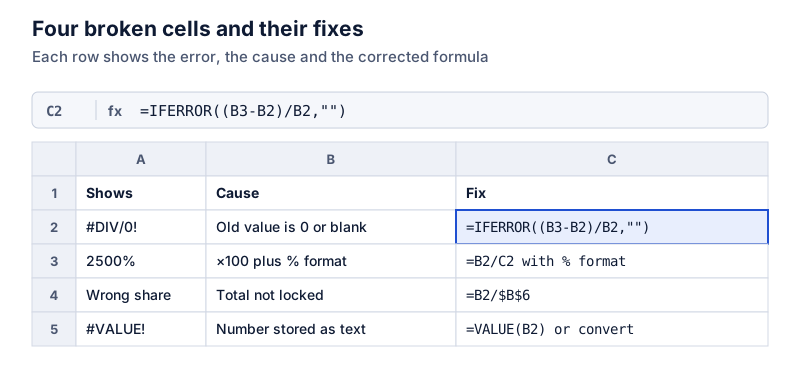
=IFERROR((B3-B2)/B2,"")or show “n/a.” A change from zero has no percentage; see percentage change from zero. - Blank new value. Counts as 0 and returns −100%. Test for blanks first.
- Negative starting value. The sign of the result can be misleading. Dividing by
ABS(B2)makes the direction match, but explain that in a note.
More fixes are in common spreadsheet percentage errors. For the basic formulas, start with percentage formulas in Excel.
Questions
Why does my percentage change show −100%?
The new value is zero or blank. A blank cell counts as 0, so (0 − old) ÷ old = −100%. Leave the formula out of rows without data, or use =IF(B3=“”,“”,(B3-B2)/B2).
Can I average the monthly changes to get the overall change?
Not accurately. Here the changes are +5%, −5% and +10%, which average to 3.3%, but the actual change from January to April is 9.7%. Calculate the overall change directly, or use a compound growth rate.
The calculator links in this guide are checked against the PercentSwift calculator every time the site is built. How we calculate explains the rounding rules. If you spot a mistake, email hello@percentswift.com.