Common spreadsheet percentage errors and how to fix them
Fix the most common spreadsheet percentage errors: #DIV/0! from zero or blank cells, 2500% from double scaling, wrong totals from unanchored references, #VALUE! from text numbers, and changes that don't add up.
Most percentage errors come from five causes: dividing by a zero or blank cell (#DIV/0!), multiplying by 100 and also applying percent format (2500%), an unanchored total reference that shifts when filled down, numbers stored as text (#VALUE!), and adding or averaging percentage changes that should be compounded.
On this page
Spreadsheet percentage problems tend to repeat. Here are the common ones, how to recognize them, and the fix for each.
1. #DIV/0!
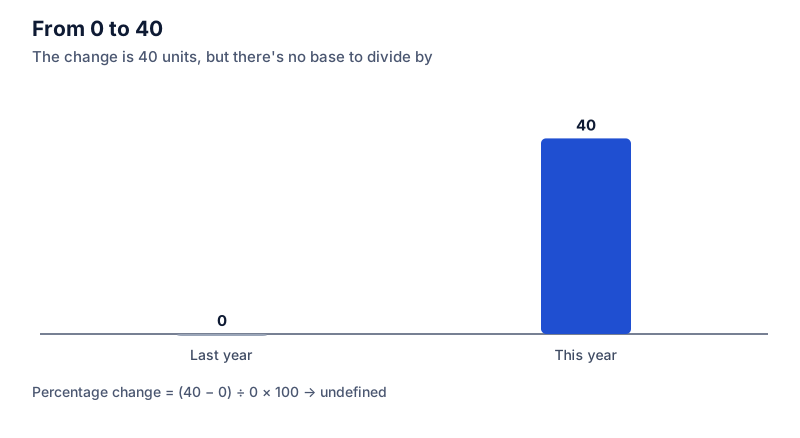
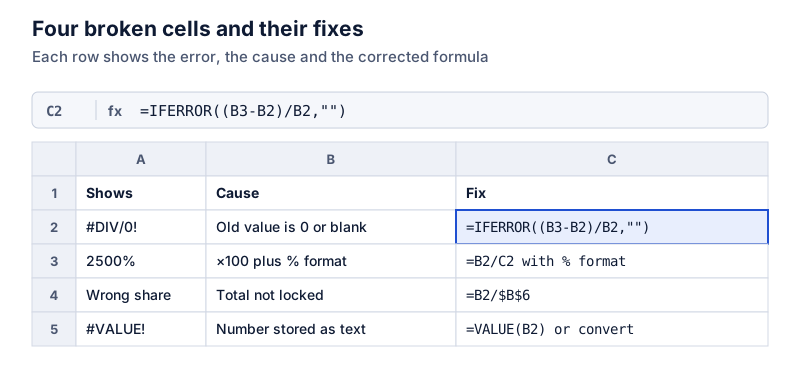
Cause: the formula divides by a cell that’s zero or blank, for example a percentage change where the old value is 0.
Fix: handle the case explicitly:
=IF(B2=0,“”,(B3-B2)/B2)
Where or =IFERROR((B3-B2)/B2,“”) to catch any error
A change from zero has no percentage, so leaving the cell blank or showing “n/a” is accurate. See percentage change from zero.
2. Numbers 100 times too big
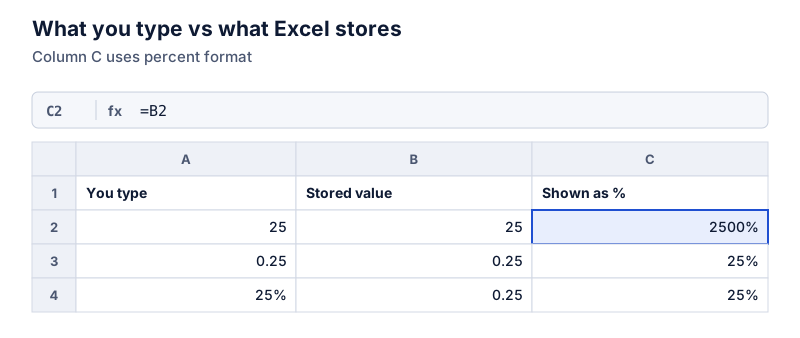
Cause: the formula multiplies by 100 and the cell also uses percent format, so 0.25 × 100 = 25 is displayed as 2500%.
Fix: use =B2/C2 with percent format, or *100 with a plain number format, not both. Details in percent format problems.
3. Percent of total goes wrong down the column
Cause: =B2/B6 shifts to =B3/B7 when filled down, dividing by an empty cell.
Fix: lock the total: =B2/$B$6. See percentage of total in Excel.
4. #VALUE!
Cause: a number is stored as text, often after importing a CSV. The cell may be left-aligned or show a small warning triangle.
Fix: convert the column (Data > Text to Columns > Finish in Excel, or Format > Number in Google Sheets), or wrap the reference in VALUE().
5. Percentage changes that don’t add up
Cause: adding or averaging percentage changes. A price that goes from 250 to 200 drops 20%:
Try it: 250 → 200
Open in calculatorRising 20% from 200 only gets back to 240, not 250. Changes compound, so combine them by multiplying growth factors: =(1+C2)*(1+C3)-1. See successive percentage changes.
6. Wrong base
Cause: percentage change calculated against the new value instead of the old one: =(B3-B2)/B3.
Fix: divide by the starting value, B2. A rise from 80 to 92 is 15%:
Try it: 80 → 92
Open in calculatorDividing by 92 instead gives 13%, a common off-by-a-bit error.
7. Rate typed as a whole number
Cause: the rate cell holds 5 instead of 5%, so =B2*(1+C2) multiplies by 6.
Fix: type 5% (stored as 0.05), or change the formula to =B2*(1+C2/100).
A quick check for any sheet
- Pick one row and do the calculation by hand or with a calculator.
- Switch a percent column to General format and look at the stored values.
- Click a filled-down formula near the bottom and check that the references point where you expect.
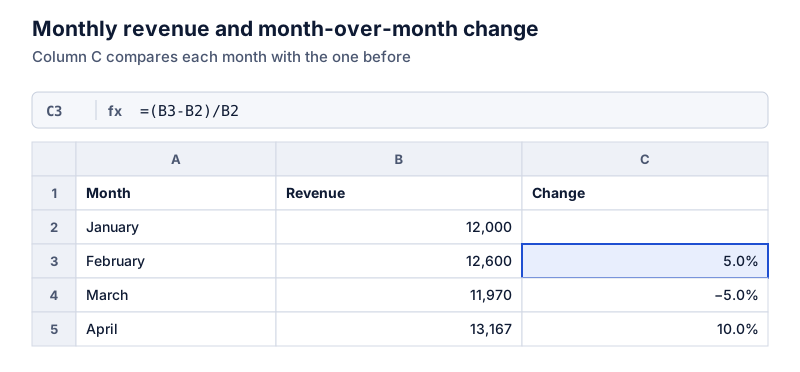
For month-over-month formulas, see the percentage change formula.
Questions
Is it better to hide errors with IFERROR?
Only for errors you expect, like a missing value. IFERROR hides every error, including real mistakes. Using IF(B2=0,“”,…) is more specific because it only handles the zero case.
Why do my percentages look right but the total is off by one?
That’s usually rounding on display. Each cell shows a rounded value, but totals use the full values. Showing one more decimal place or adding a rounding note usually resolves it.
The calculator links in this guide are checked against the PercentSwift calculator every time the site is built. How we calculate explains the rounding rules. If you spot a mistake, email hello@percentswift.com.