Why Excel shows 2500% instead of 25%, and other format problems
If Excel shows 2500% instead of 25%, the cell holds 25, not 0.25. Why percent format multiplies by 100, how to fix a whole column with Paste Special, and other display issues like rounding and text.
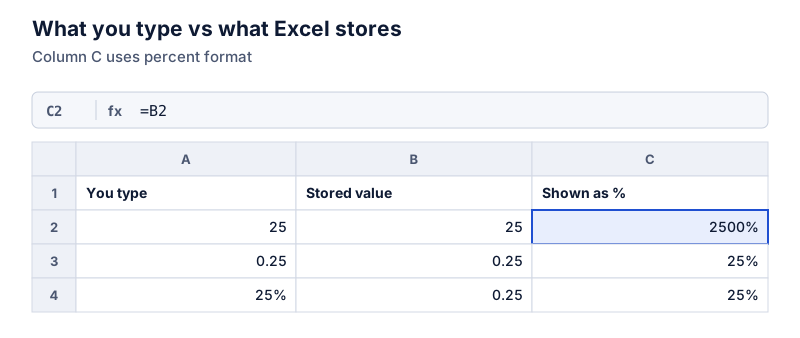
Percent format displays the stored value × 100. If the cell holds 25, it shows 2500%. Either store 0.25 (divide by 100, or remove the ×100 from the formula) or don’t use percent format. To fix a column, put 100 in a spare cell, copy it, select the column and use Paste Special > Divide.
On this page
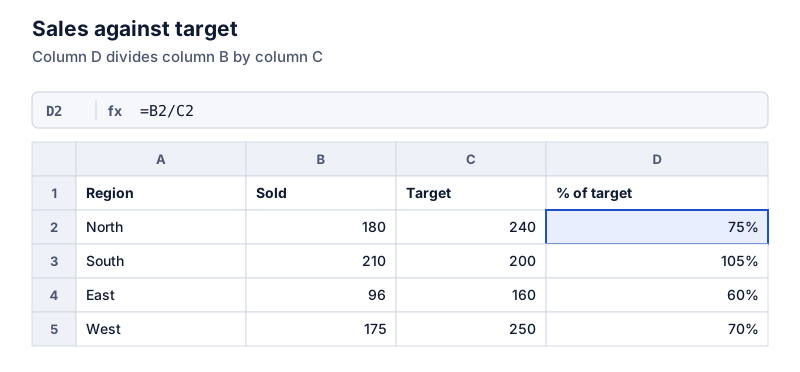
You divided two numbers, multiplied by 100, clicked the % button, and Excel shows 2500%. Nothing is broken. Percent formatting and “× 100” are doing the same job twice.
How percent format works
A percentage format takes the stored value, multiplies it by 100 for display, and adds a % sign. The value itself doesn’t change:
- 0.25 displays as 25%
- 25 displays as 2500%
- 1 displays as 100%
Fix 1: remove the × 100
If your formula is =B2/C2*100, change it to =B2/C2 and keep percent format. With 30 in B2 and 120 in C2:
Try it: 30 of 120
Open in calculator=B2/C2 returns 0.25, which percent format shows as 25%.
Fix 2: keep the × 100, drop the format
If you want plain numbers like 25 (for example, for export), keep *100 and use the General or Number format. Add “%” in the column header so readers know the unit.
Fix 3: convert a column of typed numbers
If a column of values like 25, 40, 12.5 was typed as whole numbers but should be percentages:
- Type 100 in an empty cell and copy it.
- Select the column of values.
- Paste Special > Divide > OK.
- Apply percent format. Delete the helper cell.
The values become 0.25, 0.4, 0.125 and display as 25%, 40%, 12.5%.
Typing into percent-formatted cells
Excel has an option, Enable automatic percent entry (File > Options > Advanced), that makes typing 25 into a percent-formatted cell store 0.25. When it’s off, or in other spreadsheet apps, behavior can differ, so check the stored value. Typing the % sign yourself (25%) always stores 0.25.
Other display surprises
- Rounding. A format with no decimals shows 12.5% as 13%. The stored number is unchanged, but rounded figures may not add to 100%. See why percentages don’t add to 100.
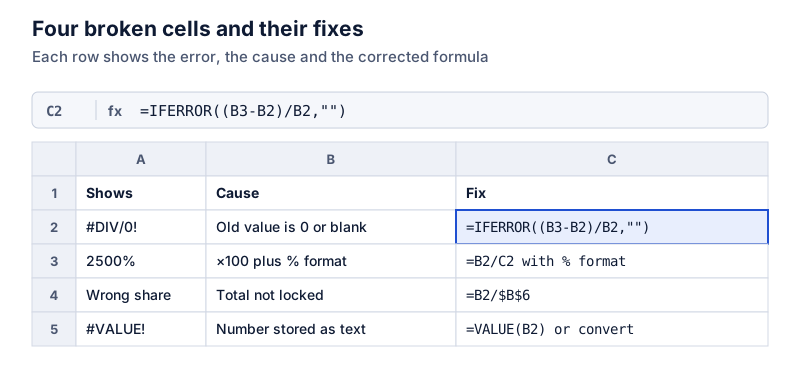
- Left-aligned numbers. Text that looks like a number (“25%” imported as text) is left-aligned and won’t calculate. Use VALUE or Text to Columns to convert it.
- Negative percentages in red or parentheses. That’s a custom number format. Check Format Cells > Custom if you see it.
For the formulas themselves, see percentage formulas in Excel and percentages in Google Sheets. More fixes are in common spreadsheet percentage errors.
Questions
Why does 0.5% show as 1%?
The format has no decimal places, so 0.005 rounds to 1% on screen. The stored value is still 0.005. Add decimal places with Increase Decimal.
Does the formula bar show the real value?
It shows what you typed or the formula. For a formula result, switch the cell format to General or Number to see the stored decimal.
The calculator links in this guide are checked against the PercentSwift calculator every time the site is built. How we calculate explains the rounding rules. If you spot a mistake, email hello@percentswift.com.