Percent of total in a spreadsheet with absolute references
Percent of total in Excel: =B2/$B$6, with dollar signs so the total cell stays fixed when you fill down. Why the formula breaks without them, plus SUM-based and table-based alternatives.
Use =B2/$B$6, where B6 holds the total, and format as a percentage. The $ signs lock the reference, so every row divides by the same total when you fill the formula down. Without them, row 3 divides by B7, which is empty, and you get #DIV/0!.
On this page
A percent-of-total column shows each row’s share of a sum. The formula is simple, but it breaks in a specific way when filled down, and the fix is two dollar signs.
The formula
With amounts in B2:B5 and the total in B6 (=SUM(B2:B5)):
=B2/$B$6
Where $B$6 is an absolute reference to the total
Format column C as a percentage.
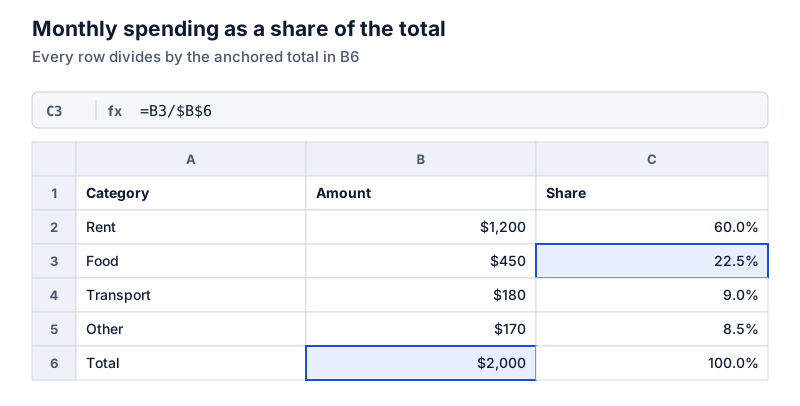
Check one row, food: $450 of $2,000.
Try it: $450 of $2,000
Open in calculatorWhy it breaks without $
If C2 is =B2/B6 and you fill it down, Excel shifts both references: C3 becomes =B3/B7, C4 becomes =B4/B8. Those cells are empty, so you get #DIV/0!, or wrong numbers if something else is there.
The dollar signs tell Excel not to shift that part. $B$6 stays $B$6 in every row.
Alternatives
- SUM inside the formula.
=B2/SUM($B$2:$B$5)needs no separate total cell. The range still needs locking. - Excel tables. Convert the range to a table (Ctrl+T) and use a structured reference:
=[@Amount]/SUM([Amount]). Tables fill formulas automatically and adjust when you add rows. - PivotTables. Value Field Settings > Show Values As > % of Grand Total gives the same column without formulas.
Checking the result
The shares should add to 100%. If they add to something else, check that the total includes every row and that no row is double-counted. Small gaps like 99.9% come from rounding, explained in why percentages don’t add to 100.
Shares of a row or column total
In a two-way table, you can show each cell as a share of its row total or column total. Lock only the part that stays fixed: =B2/$F2 divides by the row total in column F; =B2/B$8 divides by the column total in row 8. Which one to use depends on the question, as covered in percentage of total in a table.
For other basic formulas, see percentage formulas in Excel, and for Sheets, percentages in Google Sheets.
Questions
What does F4 do?
In Excel on Windows, pressing F4 while the cursor is on a cell reference cycles it through B6, $B$6, B$6 and $B6. On a Mac, use Cmd+T. It’s a quick way to add the dollar signs.
Do I need $B$6 or is B$6 enough?
For filling down a single column, B$6 (row locked) is enough. $B$6 locks both, which also works if you copy the formula sideways, so it’s the safer default.
The calculator links in this guide are checked against the PercentSwift calculator every time the site is built. How we calculate explains the rounding rules. If you spot a mistake, email hello@percentswift.com.