How to add or subtract a percentage in a spreadsheet
Raise a column of prices by 5% with =B2*(1+$E$1), cut them with =B2*(1-$E$1), and round to cents with ROUND. Keep the rate in one cell so you can change it later. Worked price-list example.
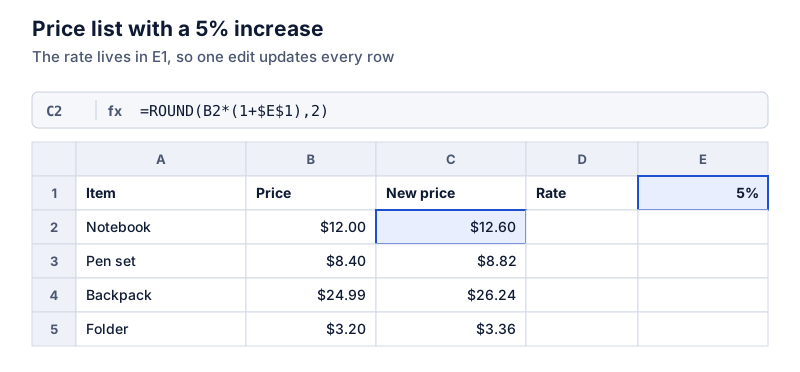
Put the percentage in its own cell (E1 = 5%) and use =B2*(1+$E$1) for an increase or =B2*(1-$E$1) for a decrease. Wrap it in ROUND for prices: =ROUND(B2*(1+$E$1),2). A $24.99 price raised 5% is $26.2395, which rounds to $26.24.
On this page
Raising every price on a list by 5%, or cutting a budget column by 10%, takes one formula and a fill-down. The key is to keep the percentage in its own cell.
The formulas
With the original value in B2 and the rate in E1 (typed as 5%):
=B2*(1+$E$1)
Where increase by the rate in E1
=B2*(1-$E$1)
Where decrease by the rate in E1
The dollar signs make $E$1 an absolute reference, so it doesn’t shift when you fill the formula down.
Worked example
The backpack costs $24.99. A 5% increase:
Try it: $24.99 increased by 5%
Open in calculatorThat’s $26.2395, which isn’t a valid price. Round to cents:
=ROUND(B2*(1+$E$1),2)
Where 2 is the number of decimal places
Result: $26.24.
Why a separate rate cell helps
- Changing E1 from 5% to 6% updates every row.
- The rate is visible, so anyone reading the sheet knows what was applied.
- You avoid typing the rate into each formula, where a typo like 1.5 instead of 1.05 is easy to miss.
Rate stored as a plain number
If E1 holds 5 rather than 5%, divide by 100: =B2*(1+$E$1/100). Mixing the two is one of the most common percentage mistakes in sheets. See format problems.
Undoing an increase
To go back from the new price to the old one, divide: =C2/(1+$E$1). Multiplying the new price by (1 − 5%) doesn’t give the original. That’s explained in increase or decrease by a percentage.
Different rates per row
Put each row’s rate in its own column (D) and use a relative reference: =ROUND(B2*(1+D2),2). That’s useful when categories get different increases.
For sale prices and discount percentages, see discount formulas in spreadsheets. For the basic formulas, see percentage formulas in Excel.
Questions
How do I change the prices in place instead of in a new column?
Type 1.05 in a spare cell, copy it, select the prices, and use Paste Special > Multiply. The original values are replaced, so keep a backup. A formula column is easier to check and undo.
Should I use ROUND, ROUNDUP or MROUND?
ROUND(x,2) rounds to the nearest cent. ROUNDUP always rounds up. For prices ending in .99, some people use =ROUNDUP(x,0)-0.01, which turns $26.24 into $26.99.
The calculator links in this guide are checked against the PercentSwift calculator every time the site is built. How we calculate explains the rounding rules. If you spot a mistake, email hello@percentswift.com.